PUBLISHED 4 MAY 2021
Note: This feature is available for Australia Post and StarTrack customers only.
The freight quote calculator lets you check the cost of a shipment, return, or transfer.
When you create a quote for a shipment within Australia you can use that quote to create a new shipment. The information you’ve already entered will be carried across to your new shipment.
Access to the freight quote tool can be removed for specific user accounts on request. Contact the Parcel Send support team for assistance.
- Australia Post
- StarTrack
- Australia Post
- StarTrack
Calculate a freight quote
Within Australia
- Check the account switcher on the top right of the page to make sure you’re using the correct account – different accounts may have different shipping methods and prices.
- Click Freight quote on the left-hand navigation.
- Choose the Within Australia tab.
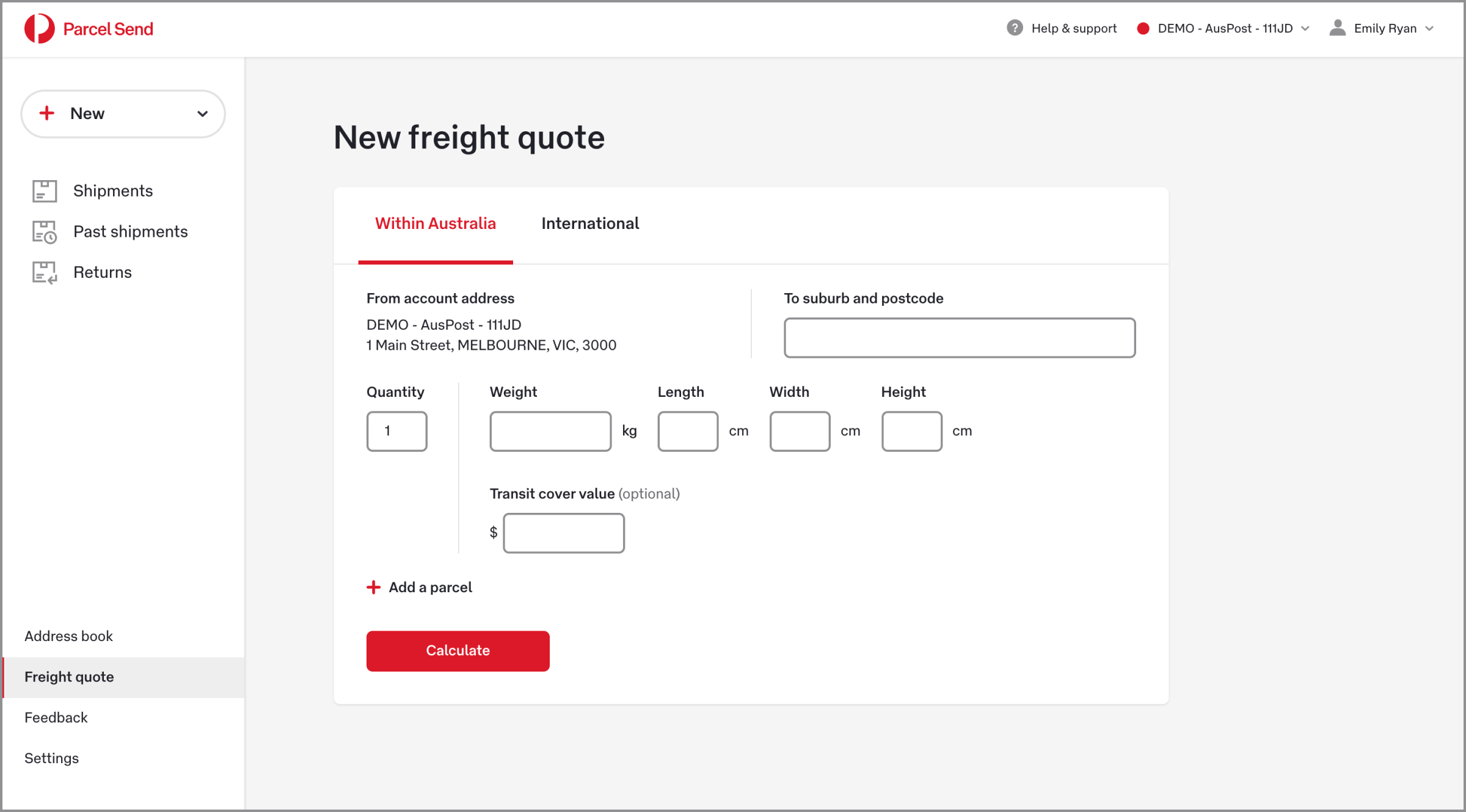
The freight quote calculator has two tabs for creating different kinds of quotes – Within Australia and International.
4. Enter the To suburb and postcode.
5. Enter the details for the first parcel, then enter the number of identical parcels (only if Parcel quantity is turned on in Settings).
6. To add more parcels, click Add a parcel.
7. Click Calculate. A list of suitable shipping methods and estimated prices will be displayed. The estimates are only valid at the time you create the quote and don’t include any product add-ons or discounts.
8. To create a shipment using one of these results, click Create shipment under the price. The information you’ve already entered will be auto-filled in a new shipment.
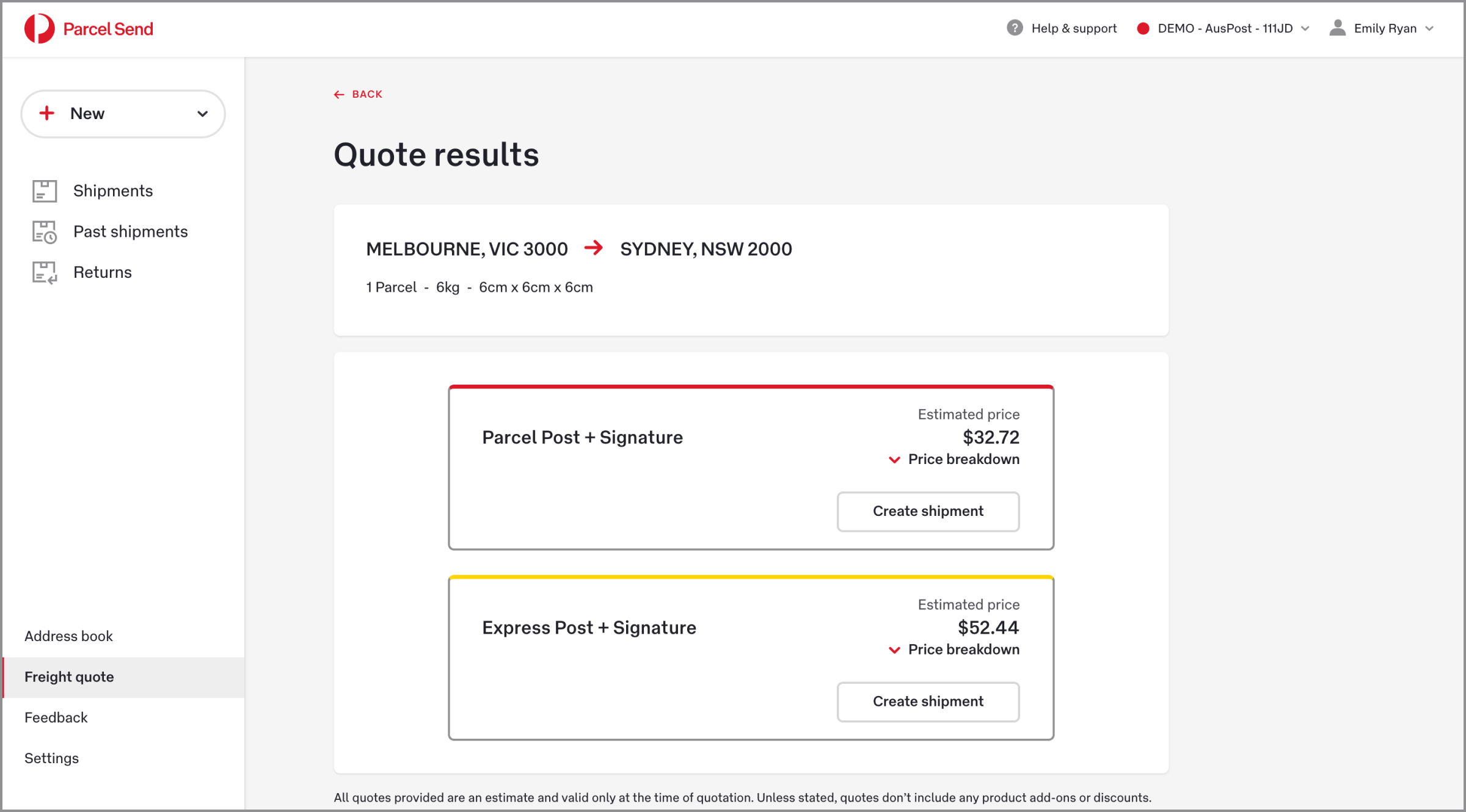
The quote results page gives you an estimated price, a price breakdown, and the option to create a shipment using one of the quoted shipping methods.
International
- Check the account switcher on the top right of the page to make sure you’re using the correct account – different accounts may have different shipping methods and prices.
- Click Freight quote on the left-hand navigation.
- Choose the International tab.
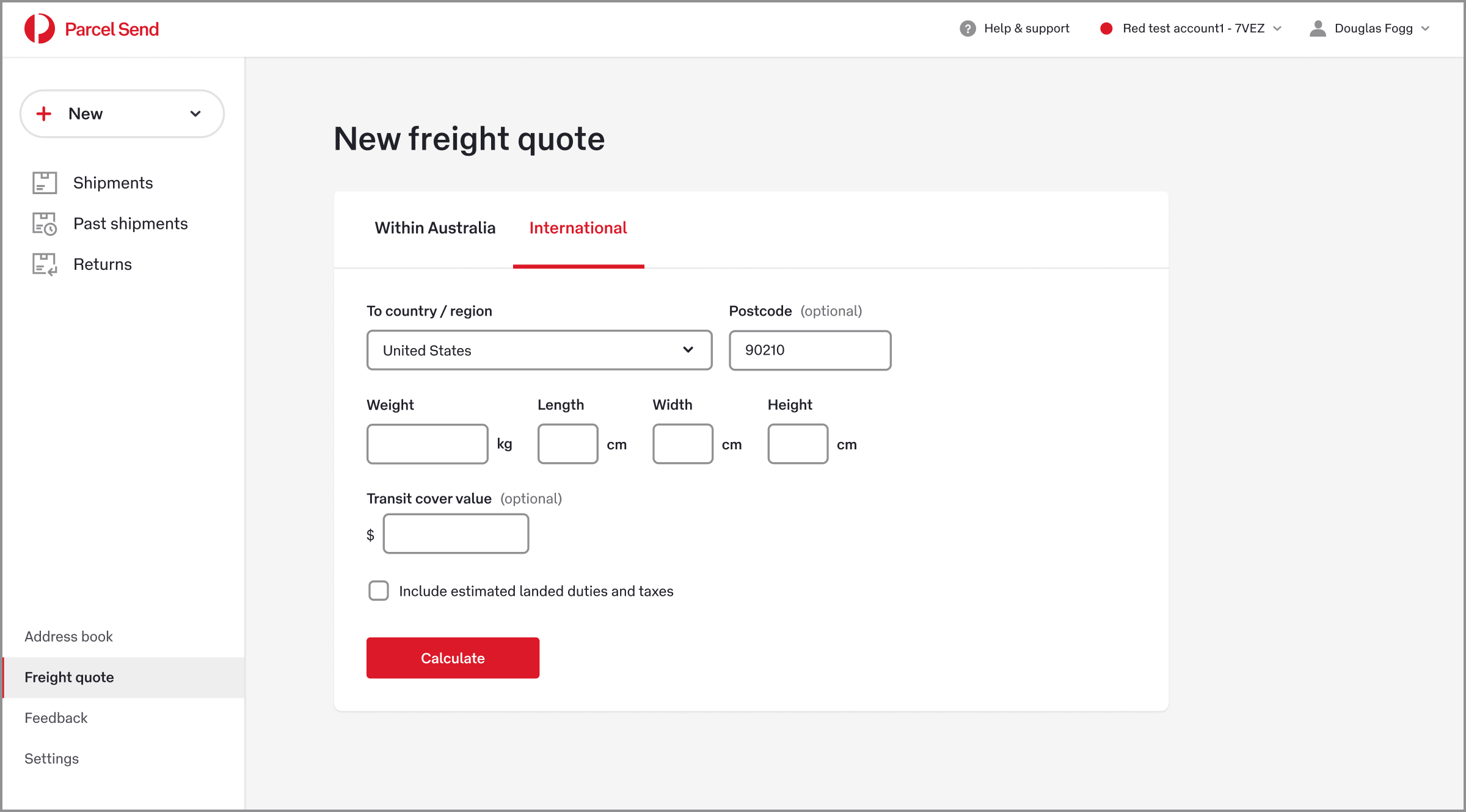
The freight quote calculator has two tabs for creating different kinds of quotes – Within Australia and International.
4. Enter the destination Country and Postcode.
5. Enter your parcel dimensions.
6. Enter the amount of Transit cover you want for your shipment.
7. If you want the cost of duties and taxes to be included in your quote, tick Include landed duties and taxes.
To get the estimate, you’ll need to enter the details of each item in your shipment.
8. Click Calculate. A list of suitable shipping methods and estimated prices will be displayed. The estimates are only valid at the time you create the quote, don’t included landed costs and taxes, and don’t include any product add-ons or discounts.
Frequently asked questions
If you’re seeing shipping prices that don’t seem right, you might be using the wrong account, or the wrong quote type. First check the account switcher in the top right-hand corner of the screen and make sure you’re in the right account.
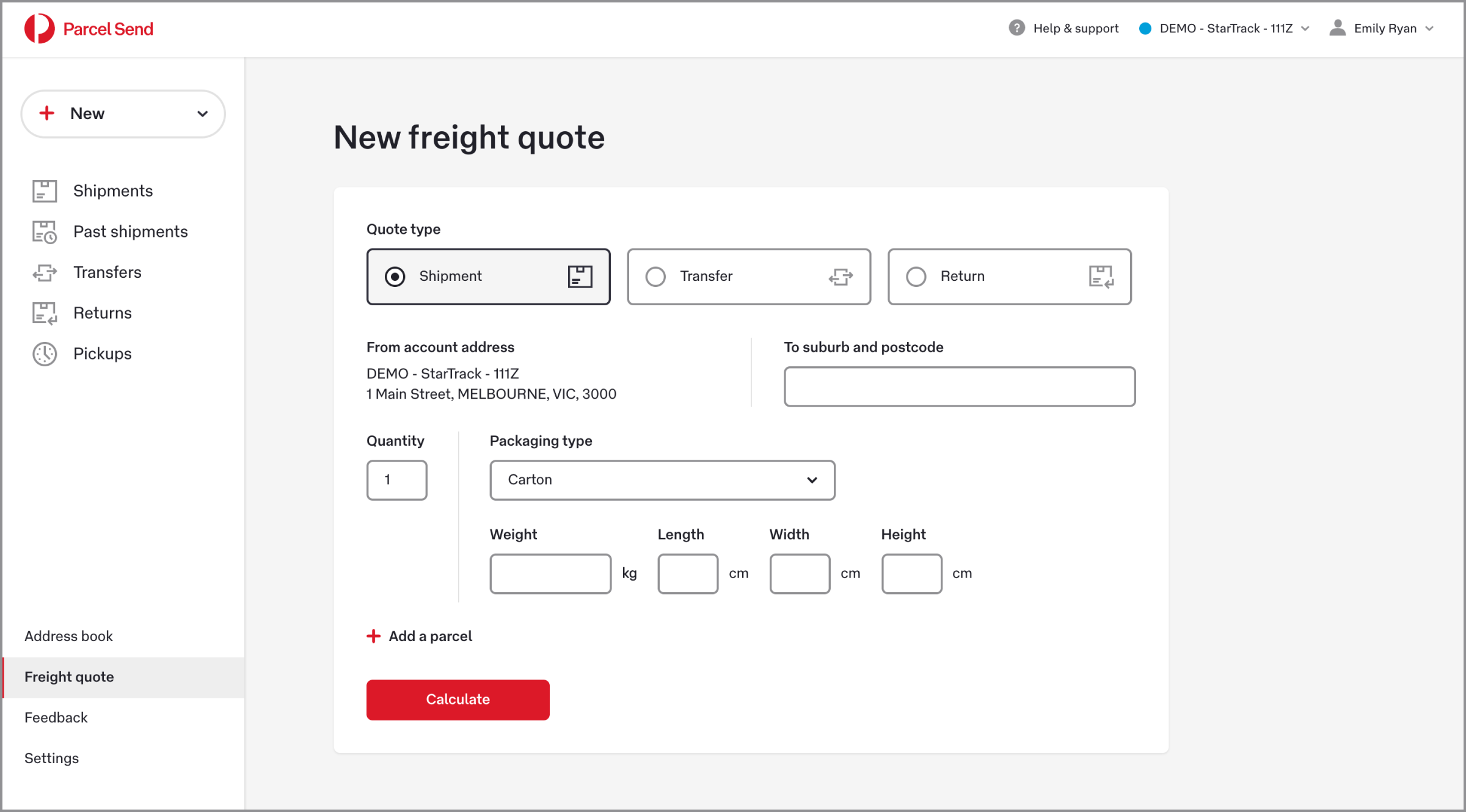
If you’re using a StarTrack account, check that you’re choosing the right quote type – Shipment, Return, or Transfer.
Was this helpful?
We read your feedback and use it to improve the help pages for our Parcel Send platform.